
Your Microsoft account must be connected to Jira and the SharePoint / OneDrive integration must be enabled.
If you’ve linked the wrong file or folder, or want to change which files or folders are linked, you can unlink files and folders from a work item.
To unlink a file or folder:
-
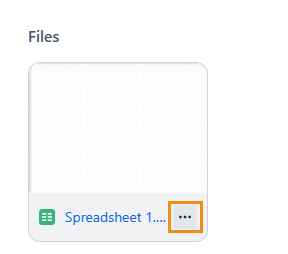
Open the file or folder’s menu.
-
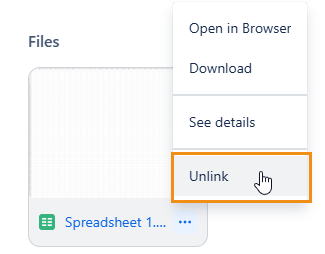
Click Unlink.
-
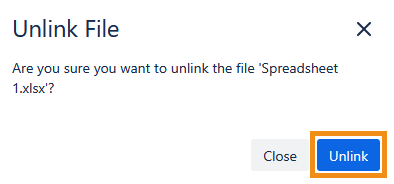
In the dialog that appears, click Unlink. The file or folder will be unlinked from your work item.
You can unlink files and folders that were linked by other users.
An individual file inside a folder cannot be unlinked. You must unlink the folder or remove the file from the folder in SharePoint / OneDrive.