
A variety of special formatting can be applied to text entered in a checklist item.
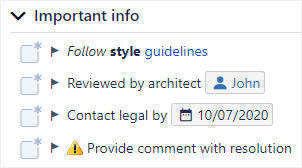
Basic Markdown
HTML cannot be inserted directly, as this poses a potential security risk. Instead, you can use the following basic Markdown syntax to format your text.
|
Formatting |
Syntax |
Example |
|---|---|---|
|
Italics |
|
The customer said what? |
|
Bold |
|
Invoices must be submitted by 5. |
|
Hyperlinks |
|
See our return policy. |
Advanced Markdown
This feature requires that the Advanced Markdown setting be enabled.
You can use almost the full Markdown suite (CommonMark specification) to customize your checklists to your heart’s desire. The only exception is that you cannot insert HTML blocks, as this poses a security risk.
To get you started, here are a few examples of what you can do:
|
Formatting |
Syntax |
Example |
|---|---|---|
|
Heading 1 |
|

|
|
Heading 2 |
|

|
|
Heading 3 |
|

|
|
Heading 4 |
|

|
|
Heading 5 |
|

|
|
Bulleted list |
|

|
|
Numbered list |
|

|
|
Block quote |
|

|
|
Code block |
|
|
Images
This feature requires that the External Images setting be enabled.
You can embed external images into checklist items using Markdown syntax.
|
Formatting |
Syntax |
Example |
|---|---|---|
|
External image |
 |

|
Dates
When dates are entered in DD/MM/YYYY or MM/DD/YYYY format, special formatting is automatically applied.

Emojis
The following emojis can be inserted:
|
Emoji |
Code |
|---|---|

|
:-) |

|
:-D |

|
;-) |

|
:-( |

|
:-S |

|
$-) |

|
8O |

|
8-) |

|
(!) |

|
(?) |

|
(i) |

|
(off) |

|
(on) |

|
(y) |

|
(n) |

|
(*) (*r) (*g) (*b) |
Jira issue links
Any issue keys that follow Jira standards will automatically be converted to hyperlinks.

User mentions
An @ symbol that is immediately followed by characters will automatically have special formatting applied.

This is not a true @mention function and is only a visual indicator. A list of users is not suggested as you type, and users are not notified that their name has been used.