
When you want to start from an existing checklist or template, you might prefer to copy and paste a checklist’s data to writing each item one by one.
You can use the Checklist editor as a form of exporting/importing interface.
To copy data:
-
Open the checklist you want to copy from (either from an item view or a template)
-
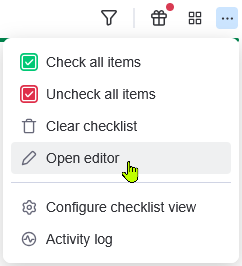
In the checklist’s menu, open the Checklist editor.
-
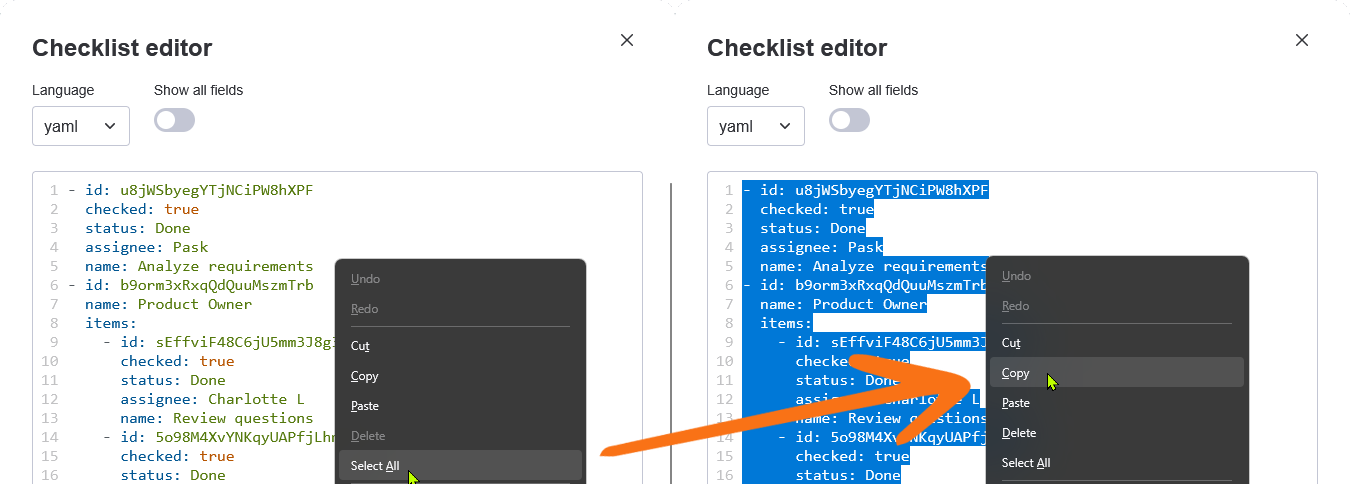
In the editor, select the whole text and copy it.
-
In your target checklist (item view or template), repeat step 2 to open the Checklist editor.
-
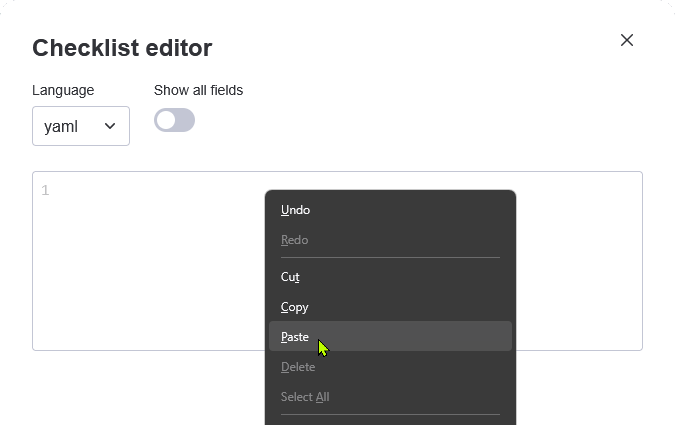
In the editor, paste the data you copied in step 3.
-
Press Save.
Depending on where you paste your data, some errors might appear stating statuses or users cannot be found.
Available statuses depend on the item view’s configuration and are not available in templates.
Available users depend on the board and monday site’s access.
You can simply remove or edit the values that are not found and press Save again.
Your target checklist should now have the same items!