
Sometimes it is easier to build or work on checklists in bulk, especially if the checklist’s data comes from an external source.
The Checklist editor provides the ability to work on your checklist in JSON or YAML format.
Data structure
The main structure of entries, regardless of the format, is as follows:
|
Field |
Type |
Description |
|
|---|---|---|---|
|
|
string |
optional |
A unique ID by checklist item and section. If none are provided, a unique ID will be generated on save. If an already-existing ID is provided, a new ID will be generated. Why IDs? The IDs are there to keep the activity log clean and clear. If the IDs weren’t there, there would be no good way to figure out if an entry was simply updated, or if it was deleted and a new one was added. |
|
|
string |
mandatory |
The name of the checklist item or section, including newlines and Markdown. |
|
|
boolean |
optional |
Indicates if the checklist item is checked or not. Defaults to |
|
|
string |
optional |
The name of the item’s status, based on the checklist’s status set. Statuses are not available in templates. See limitations. |
|
|
ISO string |
optional |
The checklist item’s due date, in ISO format. If the format is shortened (IE |
|
|
string |
optional |
The name of the item’s assigned user. Wrong user was assigned after saving? See limitations. |
|
|
array |
optional |
An array of entries or sections. The entry is automatically considered a section if this field is present. At that point, the |
Opening the editor
The editor is available from the checklist’s main menu.
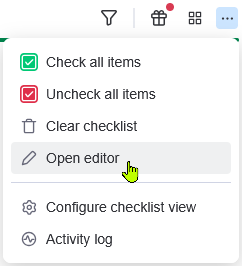
The Checklist editor
The checklist editor has two main sections:
-
The options
-
The text editor
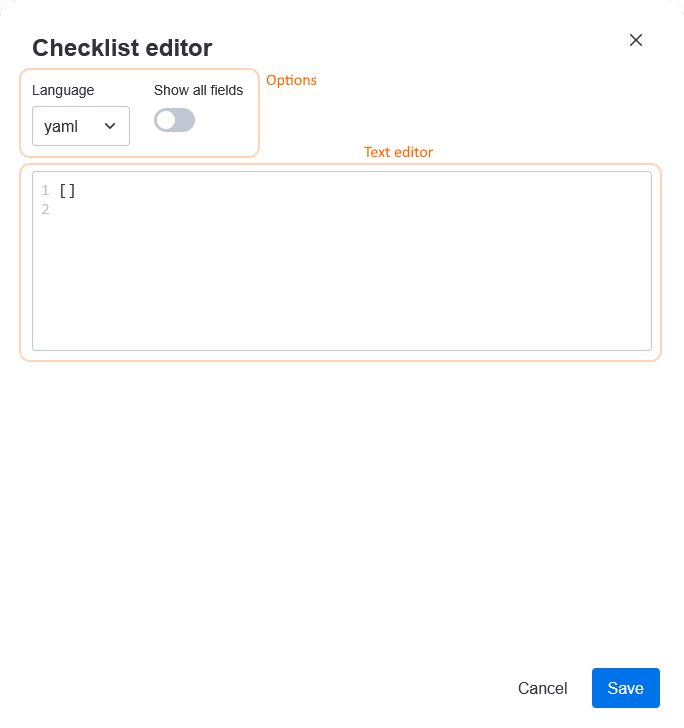
Options
You can use the options to configure how you want to work in the editor.
-
Language selects how the data is read and formatted in the editor. You can change the language at any time.
-
Show all fields indicates whether optional empty fields are shown or not.
This can be particularly useful if you want to fill in the optional fields without having to remember their exact name.
|
Show all fields ON |
Show all fields OFF |
|---|---|
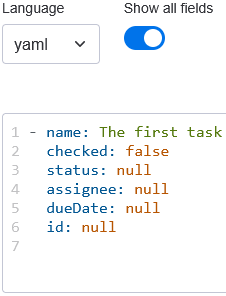
The |
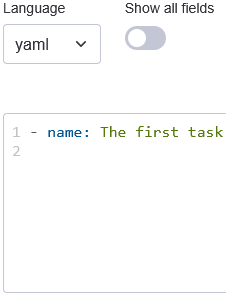
|
Errors
When you either change options or press Save, the data will be validated. If a validation fails, one or more errors will appear at the top of the editor to help guide you.
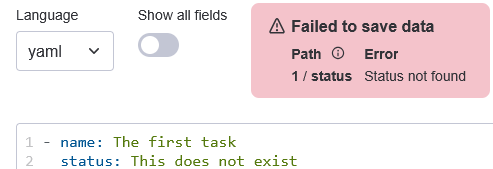
The errors will be split in two columns:
-
Path guides you to find the location of the error. The numbers represent the hierarchical position of entries.
2 / 3 / 2means the second entry in the first level, then the third entry in that section, and the second entry in that section.YAML- name: Section 1 items: - name: Level 2 item 1 - name: Section 2 # [2] / 3 / 2 - Second entry of this level items: - name: Level 2 item 1 - name: Level 2 item 2 - name: Level 2 section # 2 / [3] / 2 - Third entry of this level items: - name: Level 3 item 1 - name: Level 3 item 2 # 2 / 3 / [2] - Second entry of this level - name: Level 3 item 3If a field name is specified at the end, then the error is specific to that field.
-
Error is the textual description of the error.
Limitations
Statuses in templates
Statuses are not available in templates. All status values will fail validation as “Status not found”.
Assignee user names
To simplify setting the assignee, the editor uses the full user names instead of obscure user IDs. If two users have the same name in your monday account, the app will set the first user whose name matches.