User assignment only available for accounts using a paid plan of Checklist for monday.
This feature requires that the User assignment setting be enabled.
You can assign a checklist item to any user. Once a user is assigned, their avatar will appear on the right side of the item row.

To assign a user:
-
Press the user button in the checklist item row.

-
Select the user to assign:
-
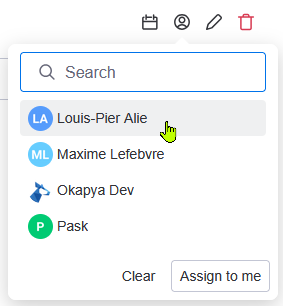
You can press any of the suggested users in the list. By default, you will see the current board’s subscribers.
-
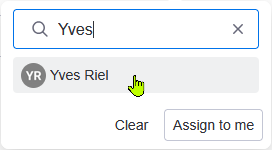
You can search of a user by their name, then press the user once they are found.
-
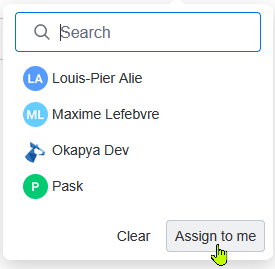
Press Assign to me to assign the checklist item to yourself.
-
-
Once assigned, the user button will change to the assigned user’s avatar. Hovering the avatar will display the assignee’s name.